 Zheng
Zheng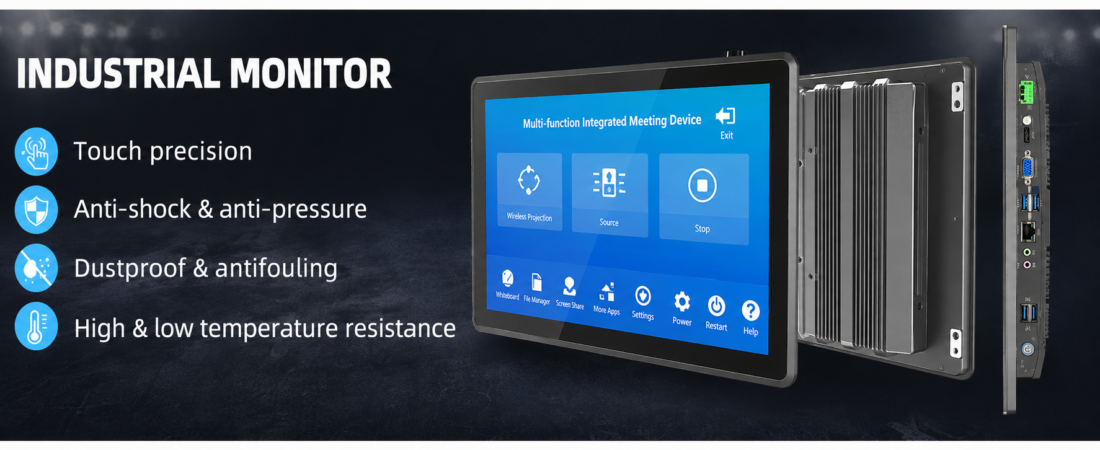
Choosing an industrial panel PC is primarily an application and installation decision—not simply a processor comparison. The correct system must fit the enclosure, remain readable in the operating environment, support the required touch workflow, and connect reliably to the machine.
This practical guide explains the eight factors buyers and engineers should confirm before requesting a quotation. Use it to compare mounting types, display specifications, touch technology, computing performance, interfaces and environmental requirements.
Quick selection checklist
- Installation and mounting method
- Screen size, resolution, brightness and viewing distance
- Capacitive or resistive touch and glove requirements
- Processor, memory, storage and operating system
- COM, LAN, USB, GPIO, display and wireless interfaces
- Temperature, dust, moisture, vibration and duty cycle
- Power input, accessories and certification requirements
- Quantity, delivery destination and project schedule
1. Start with the application environment
Define what the computer will control or display. Typical uses include machine HMI, production monitoring, test equipment, industrial automation, data collection and OEM equipment integration. Record the expected operating hours, ambient temperature, dust or moisture exposure, vibration, cleaning method and maintenance access.
Environmental information influences the enclosure, cooling design, brightness, connector layout and installation method. If the system will operate continuously, a fanless design reduces moving parts and routine maintenance.
2. Choose the correct mounting method
Mounting style determines the front edge, enclosure cutout, rear clearance and service method. Confirm it before selecting the screen size.
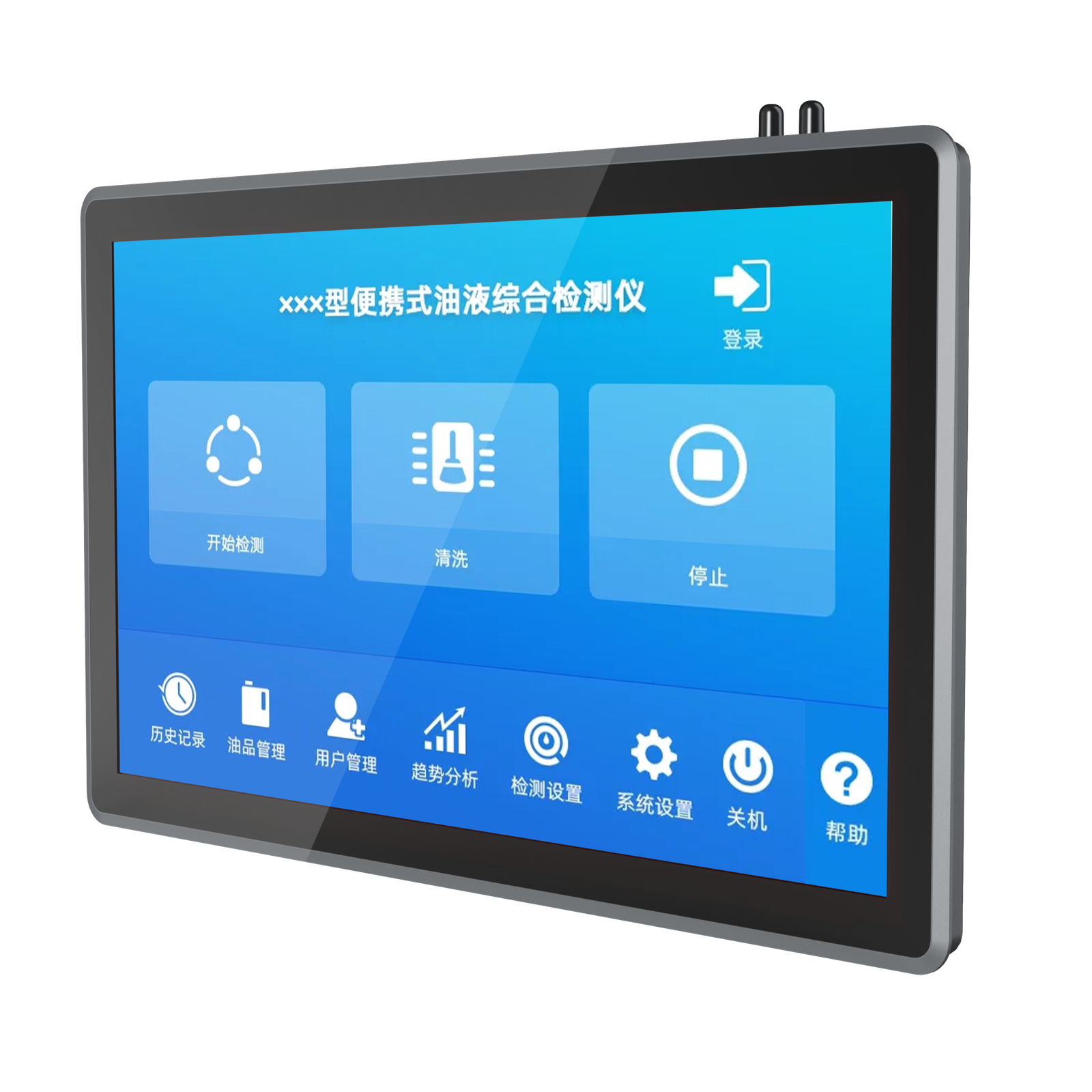
External-mount panel PCs
Mounted from the front, with the frame covering the panel opening. This design is practical for control stations and equipment where front-side installation and service access are preferred. Browse external-mount models.
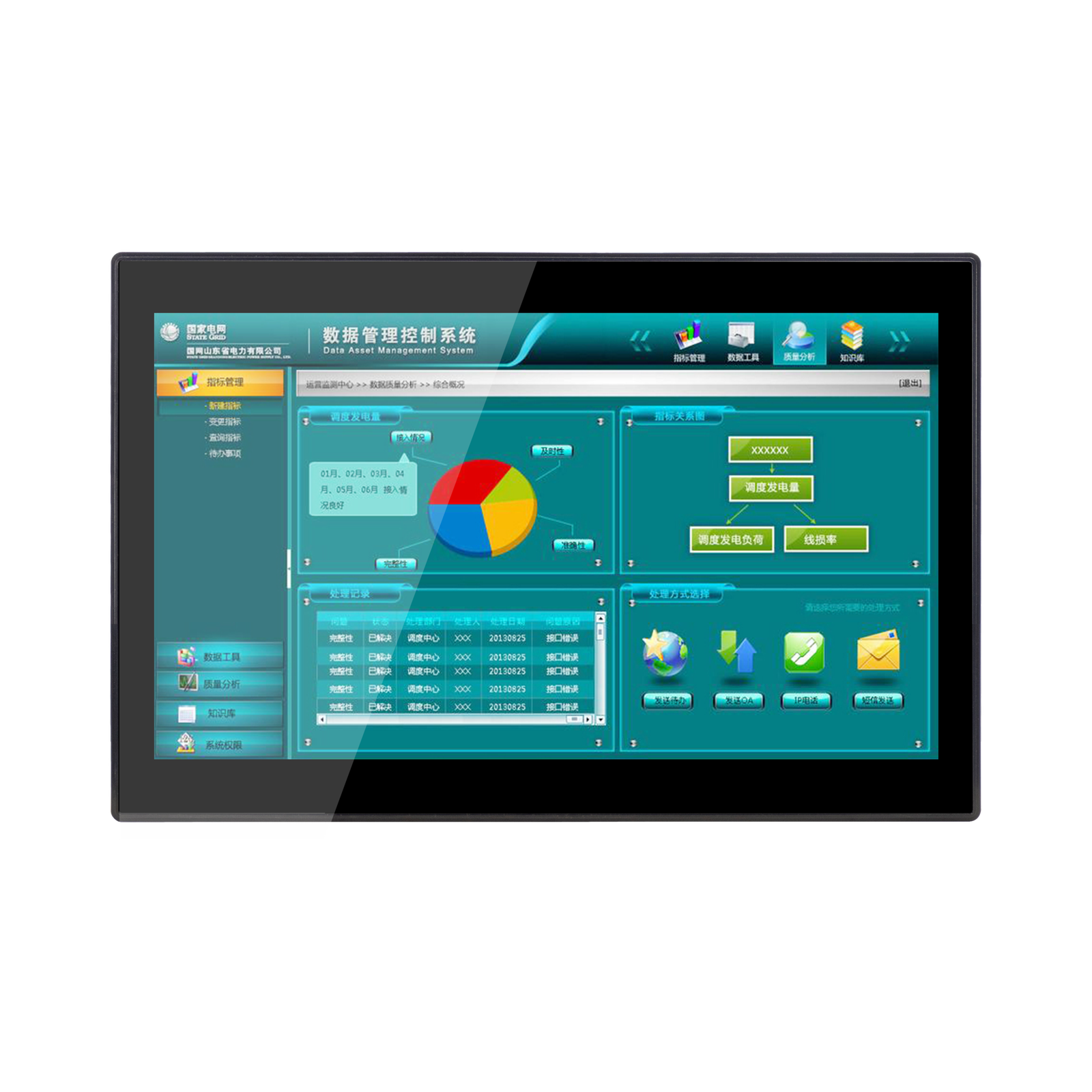
Embedded panel PCs
Integrated into a cabinet, console or OEM machine panel. Check the panel cutout, installation depth and fastening method against your mechanical drawing. Browse embedded models.
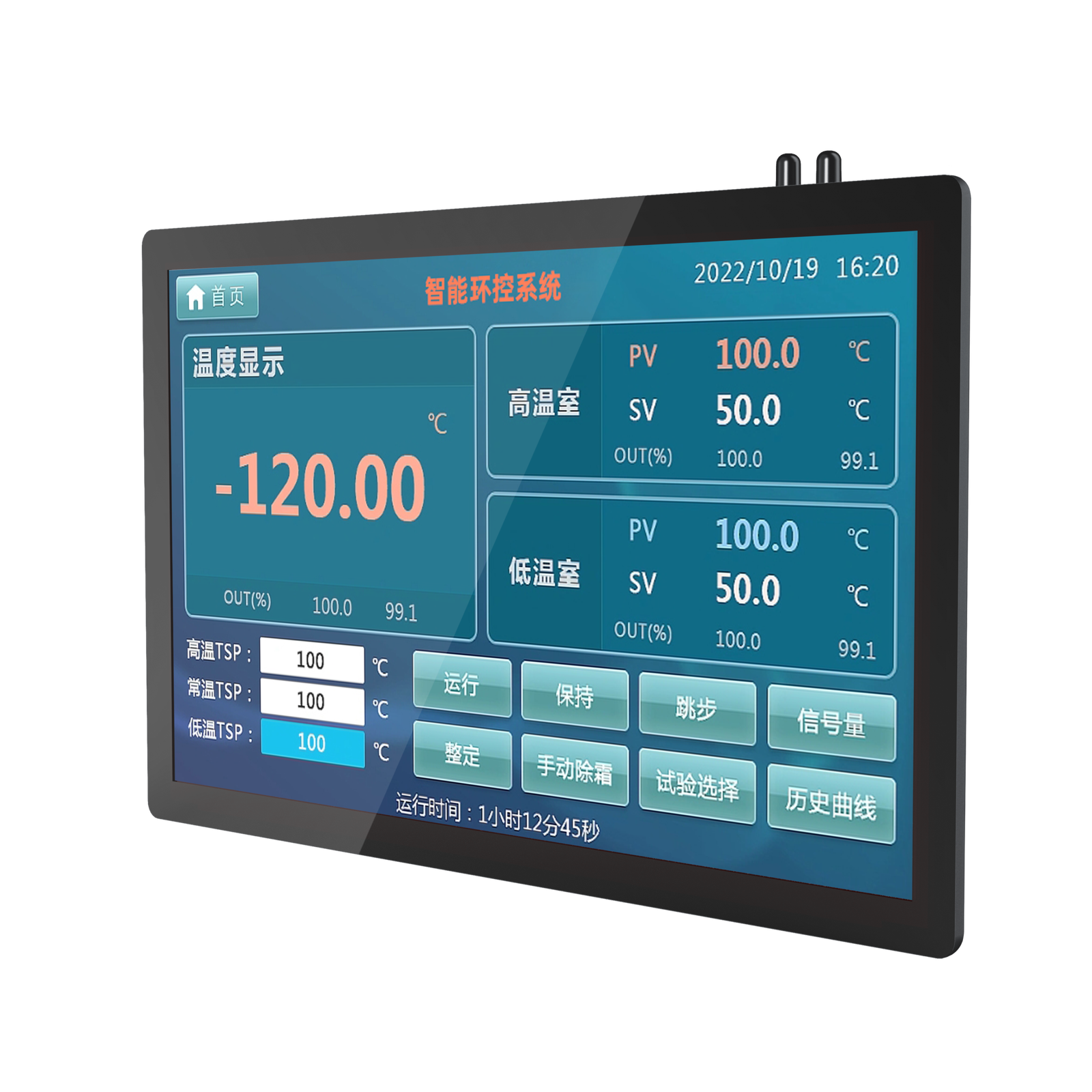
Wall-mounted panel PCs
Suitable for VESA arms, wall brackets, stands and workstations. Verify VESA spacing, cable direction and the load rating of the mounting hardware. Browse wall-mounted models.
3. Select screen size and resolution
Choose screen size around viewing distance, available panel space and the amount of information operators must see. A compact display can suit a local machine control station, while larger screens support dashboards, process diagrams and multi-window monitoring.
Confirm native resolution, aspect ratio, brightness and viewing angle. Higher resolution is useful for detailed interfaces, but software scaling and touch-target size must remain comfortable for operators. For projects that need a display without a built-in computer, compare our industrial touch displays.
4. Match touch technology to the operator workflow
Projected capacitive touch supports responsive multi-touch interaction and is well suited to modern graphical interfaces. Resistive touch can be appropriate when operators use gloves or a stylus and the application requires single-point control. Confirm glove type, cover glass, cleaning agents and whether accidental touches must be minimized.
5. Size the processor, memory and storage
Start with the operating system and application workload. A basic HMI or data terminal may need modest resources, while machine vision, database workloads, multi-display dashboards or virtualization require more CPU performance, memory and storage. Also confirm whether Windows, Linux or Android is required and whether your software needs a specific architecture or driver.
6. List every required interface
Create an interface checklist before quotation. Common requirements include RS-232/422/485 serial ports, Ethernet, USB, HDMI or DisplayPort, GPIO, audio, Wi-Fi and cellular connectivity. Specify connector quantity, protocol, isolation needs and cable direction. The rear layout must remain accessible after installation.
7. Confirm reliability and compliance requirements
Discuss operating temperature, ingress protection expectations, electromagnetic compatibility, shock, vibration and power conditions. Required certification depends on the final configuration and destination market, so confirm documentation during quotation. See our available certifications and patents.
8. Give the factory a complete project brief
A complete brief reduces configuration errors and quotation time. Include mounting type, screen size, CPU, memory, storage, operating system, interfaces, touch requirements, installation drawing, quantity, destination and required delivery date.
| Project item | Information to provide |
|---|---|
| Mechanical | Mounting method, panel cutout, depth, VESA pattern and cable direction |
| Display and touch | Size, resolution, brightness, touch type, gloves and cover glass |
| Computing | CPU, RAM, storage, operating system and application workload |
| Connectivity | COM, LAN, USB, display, GPIO, Wi-Fi and other interfaces |
| Environment | Temperature, dust, moisture, vibration, cleaning and operating hours |
| Commercial | Quantity, destination, schedule and required documentation |
ZhengFeng supports project-based configuration and OEM/ODM requirements. MOQ is one unit, with a standard one-year warranty. Typical lead times are 7 days for up to 10 units, 14 days for up to 50 units and 20 days for up to 100 units, subject to configuration and material confirmation.
Frequently asked questions
What is the difference between a panel PC and an industrial monitor?
A panel PC combines the display, touchscreen and computer in one enclosure. An industrial monitor provides display and touch functions but connects to a separate computer.
Should I choose capacitive or resistive touch?
Choose capacitive touch for responsive multi-touch interfaces. Consider resistive touch when the process uses certain gloves or a stylus and needs precise single-point operation.
Can the CPU, memory, storage and interfaces be customized?
Yes. Available options depend on the selected model and motherboard platform. Share the complete software and interface requirements so the factory can confirm a compatible configuration.
Need help selecting a panel PC?
Send your installation drawing, screen size, software, interfaces, quantity and destination. Our team will review the requirements and recommend a suitable configuration.